Download & Install PhoneCam App
Follow these simple steps to turn your Android phone into a silent CCTV camera
📱 Download PhoneCam App
Click the button below to download the app to your Android phone
📥 Download PhoneCam APKFile size: ~5MB • Version: 1.0 • Android 7.0+
⚠️ Important: Not Available on Google Play Store
PhoneCam is not available on Google Play Store. You need to download it directly and enable "Install from Unknown Sources" on your phone. This is completely safe and normal for apps not distributed through the Play Store. Follow the steps below carefully.
Installation Guide
Follow these steps in order to install PhoneCam on your Android phone
Download the APK from Dropbox
📱 On Your Phone (Recommended):
- Open your phone's browser (Chrome, Firefox, etc.)
- Click the "📥 Download PhoneCam APK" button above
- Dropbox will open and show "Open with Dropbox?"
- Click "Cancel" or "Continue to website"
- You'll see the file with a download button
- Click the "Download" button
- Click "Direct download" (you don't need to sign in)
- The file will download to your phone's Downloads folder
💻 On Your Computer (Alternative):
- Click the download button on your computer
- Click "Download" then "Direct download"
- Save the file to your computer
- Transfer the file to your phone via USB cable or email it to yourself
✓ Success: You should see "pcsc.apk" in your Downloads folder
Enable Installation from Unknown Sources
Why? Android blocks app installations from outside Google Play Store by default for security. You need to allow your browser or file manager to install apps.
📱 For Android 8.0 and Above (Most Common):
- Open your phone's Settings
- Go to Apps or Apps & notifications
- Look for Special app access or Advanced
- Tap Install unknown apps
- Find and select your Browser (Chrome, Firefox, etc.) or Files/Downloads app
- Toggle "Allow from this source" to ON
📱 For Android 7.x (Older Devices):
- Open your phone's Settings
- Go to Security or Security & privacy
- Find Unknown sources
- Toggle it ON
- Confirm by tapping OK
🔄 Quick Method (When Installing):
When you try to install the APK, Android will automatically ask you to allow installation from that source. Just tap "Settings" → Toggle "Allow from this source" → Go back → Install!
✓ Success: You've enabled installation from unknown sources
Install & Configure PhoneCam App
📥 Installation:
- Open your phone's Downloads folder or File Manager
- Find the file "pcsc.apk"
- Tap on the file to open it
- You'll see an installation screen
- Tap "Install"
- Wait for the installation to complete (5-10 seconds)
- Tap "Open" when done
⚠️ If you see "Installation blocked":
This means you need to complete Step 2 first. Tap "Settings" and enable "Allow from this source", then try again.
⚙️ Configuration (app opens automatically):
- The app will ask for Camera permission → Tap "While using the app" or "Allow"
- The app will ask for Microphone permission → Tap "While using the app" or "Allow"
- IMPORTANT: The app will generate a unique Device ID
- 📝 Write down or take a screenshot of this Device ID!
- This ID is your device's unique identifier (e.g., "dev-12345")
- You will need this ID to connect from your Dashboard
- Optional: Activate device admin protection
🔒 Device Admin Protection (Optional):
- • You can tap "Enable Admin Protection" first if you want uninstall protection
- • This shows a notification if someone tries to uninstall the app
- • Prevents accidental uninstallation
- • OR you can skip this and go directly to "Start Service & Close"
- Tap "Start Service & Close" when ready
- The service is now running silently in the background
- Go to your Dashboard on your computer/laptop to connect to this device
🔴 CRITICAL: Save Your Device ID!
The app does NOT require login credentials. Instead, it generates a unique Device ID that you must enter in the web Dashboard Device Controller to connect to this device.
📱 Important Settings:
- Ensure stable internet connection (WiFi or mobile data)
- The app runs silently in the background
- No preview will show on the phone screen
- Phone can be locked or screen turned off
✓ Success: Your phone is now running as a silent CCTV camera! Go to your Dashboard and enter the Device ID to view the live feed.
Connect from Your Dashboard
- On your computer/laptop, go to your Dashboard at:
phonecam-silentcctv.com/dashboard.php - Login with your account credentials
- First time only: Click "Profile" → Add your Device ID to the list
📝 One-time setup: Enter the Device ID you saved from your phone and click "Add". This only needs to be done once per device.
- Go back to Dashboard and click "Open Device Controller"
- Select your device from the dropdown list (no need to enter Device ID again!)
- Click "Connect"
- Click "Start Stream"
- You will see the live video feed from your phone camera! 🎉
💡 Pro Tips:
- Position your phone camera to face the area you want to monitor
- Use a phone stand or mount for stable positioning
- Test the connection before leaving your location
- You can connect multiple phones (based on your subscription plan)
📸 Visual Installation Guide
Follow these actual screenshots from the installation process
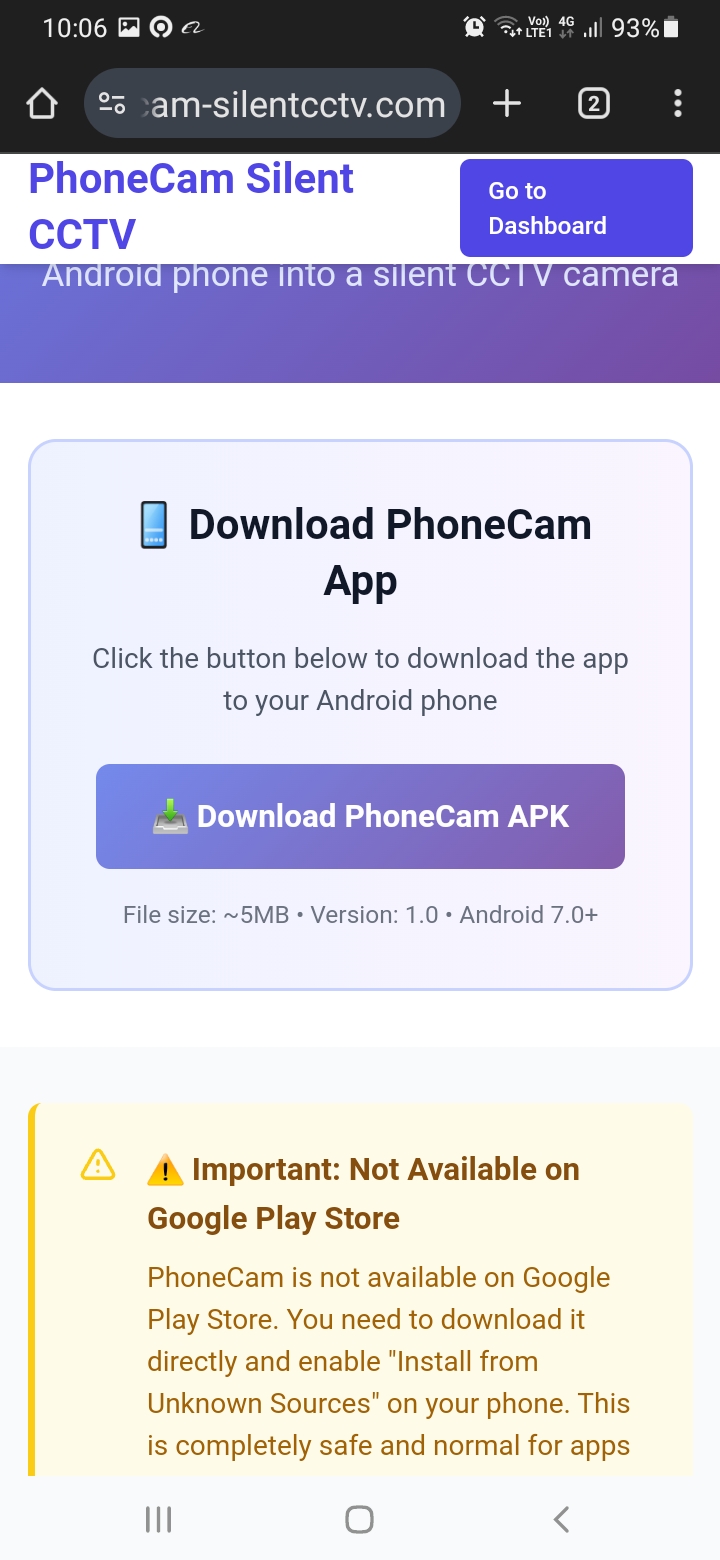
Download Page
Click "📥 Download PhoneCam APK" button to start downloading the app file.
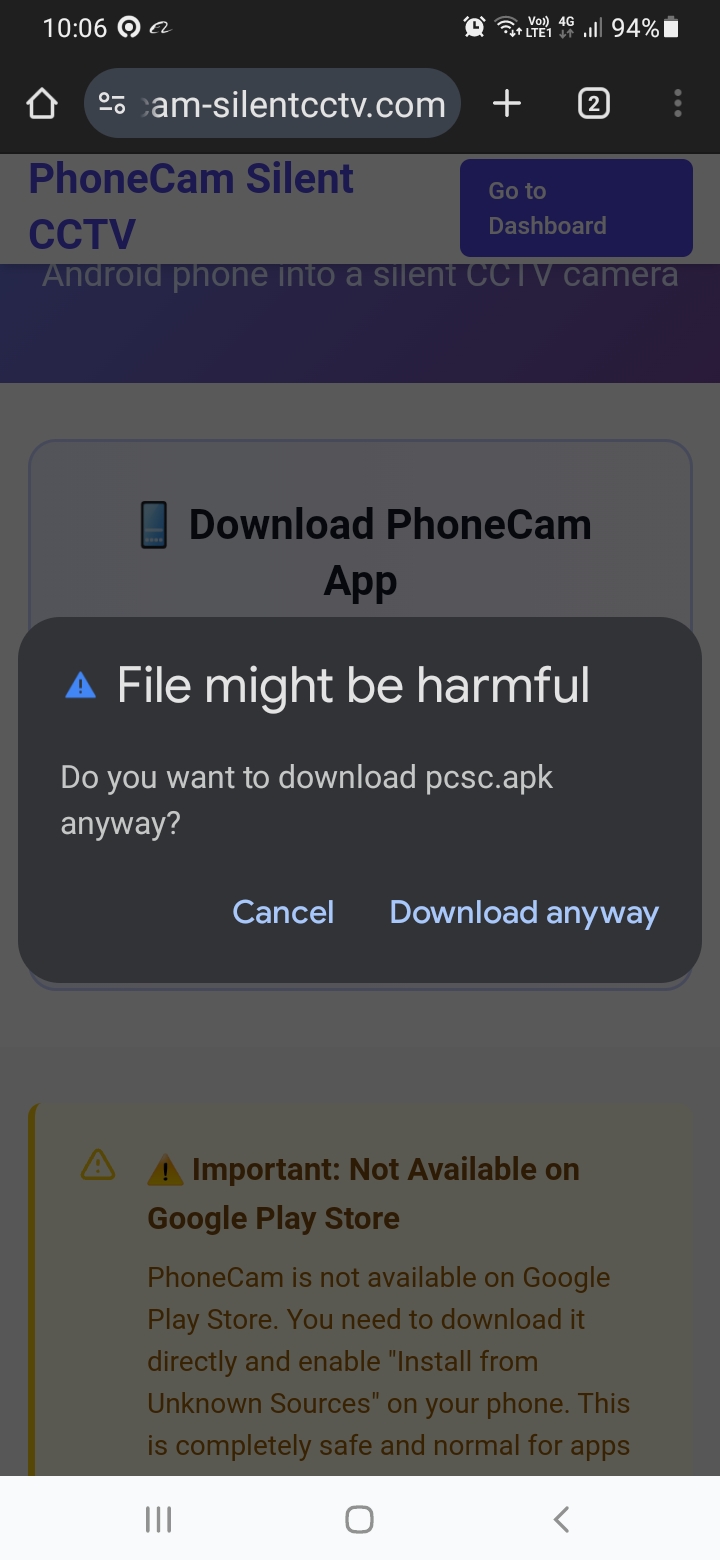
File Might Be Harmful
This is a normal Android security warning. Click "Download anyway" to proceed.
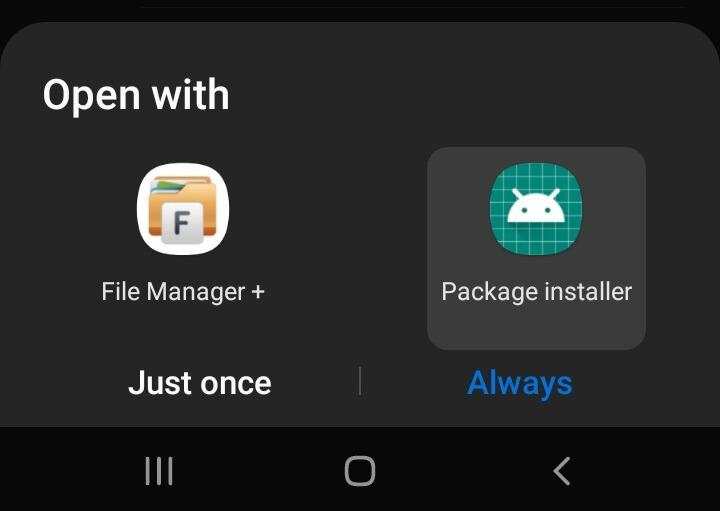
Open With Package Installer
Select "Package installer" and tap "Always" or "Just once".
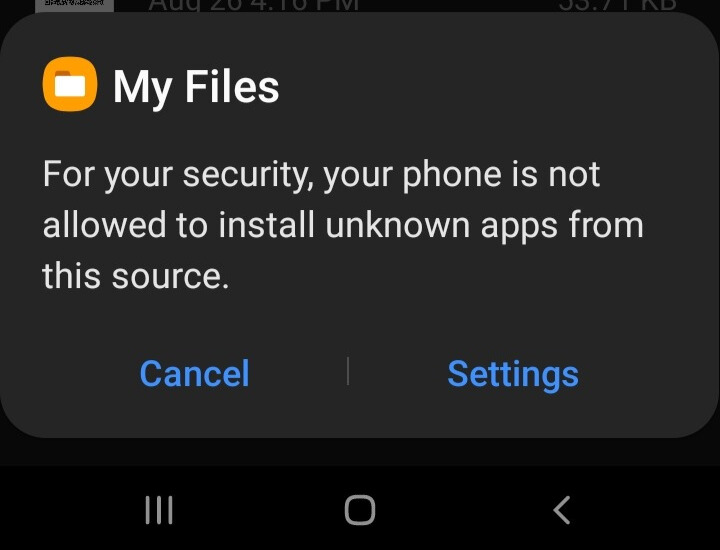
Security Warning
Phone says it's not allowed to install unknown apps. Tap "Settings" to allow.
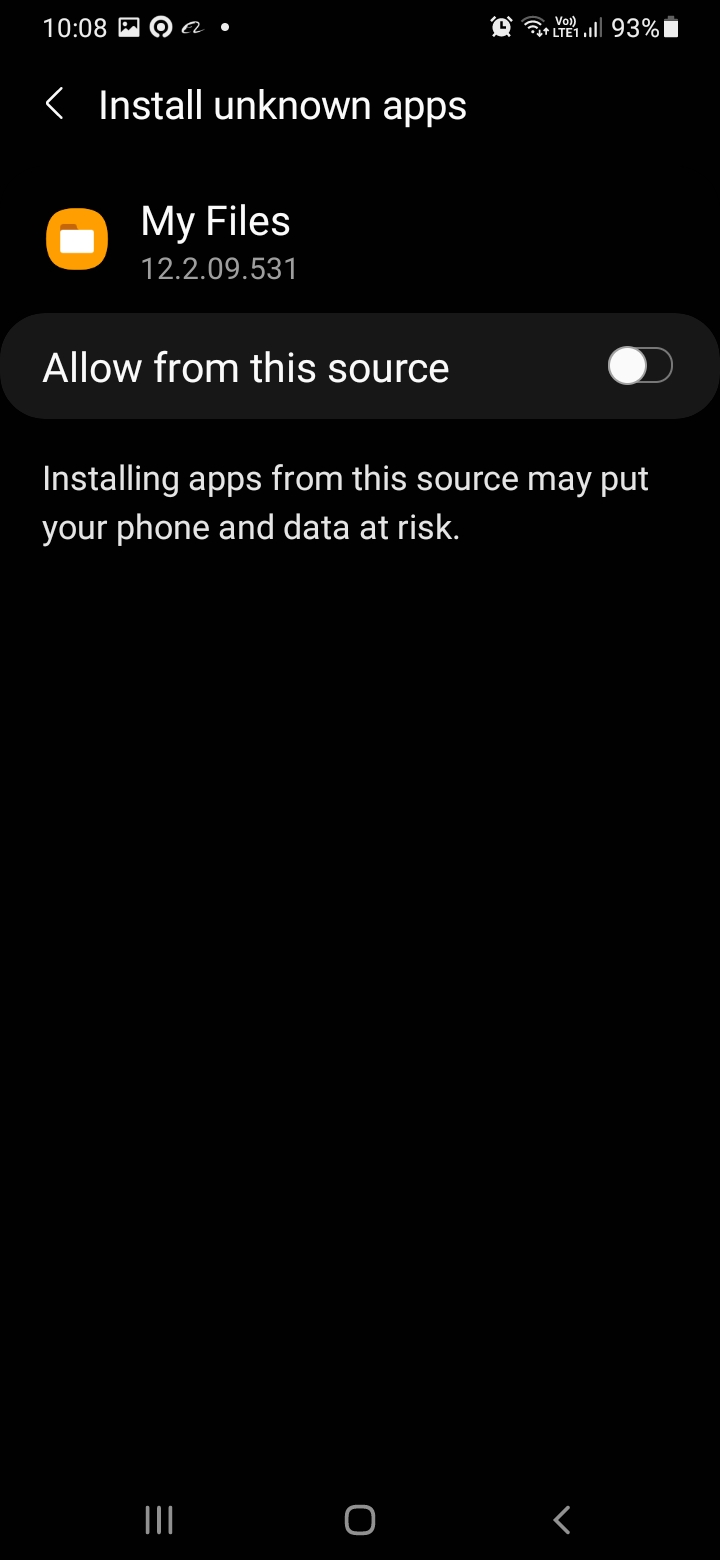
Enable Installation Permission
Toggle ON the "Allow from this source" switch, then go back.
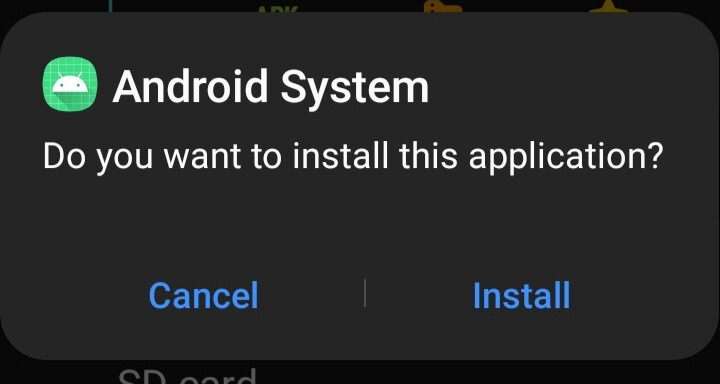
Install Application
Tap "Install" to begin installing the PhoneCam app.
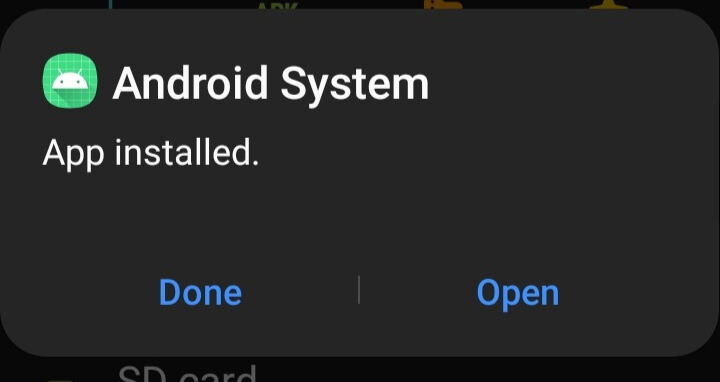
App Installed Successfully
Installation complete! Tap "Open" to launch the app.
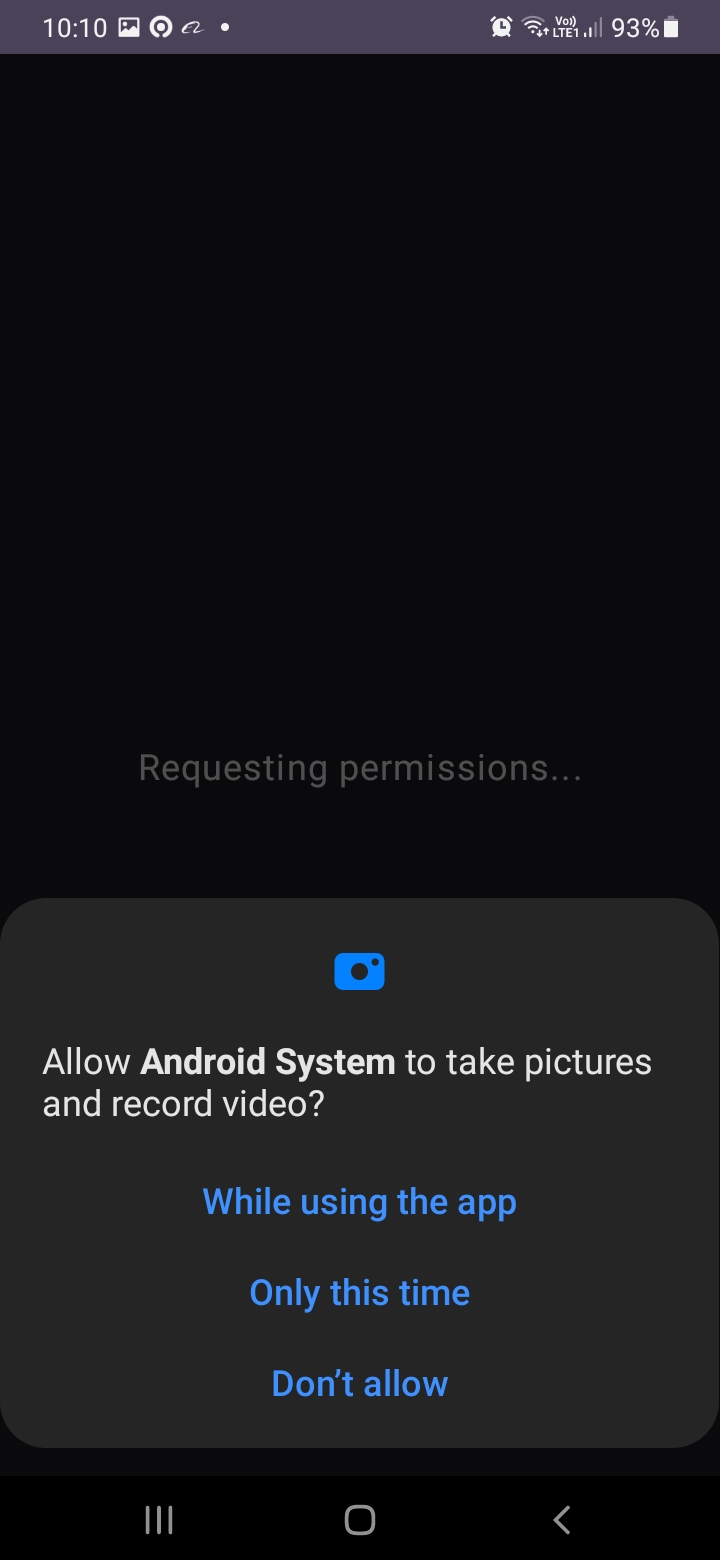
Allow Camera Permission
Tap "While using the app" to grant camera access.
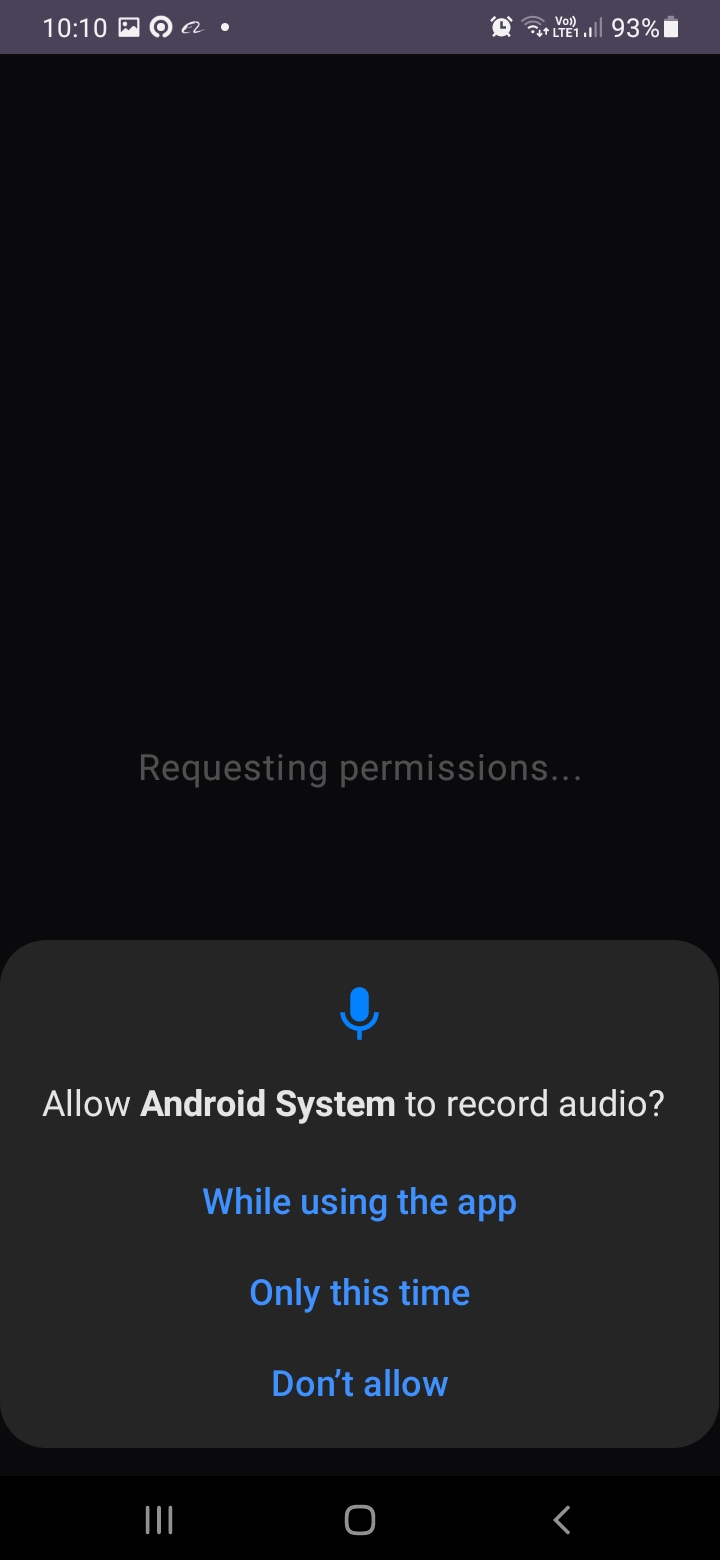
Allow Microphone Permission
Tap "While using the app" to grant microphone access.
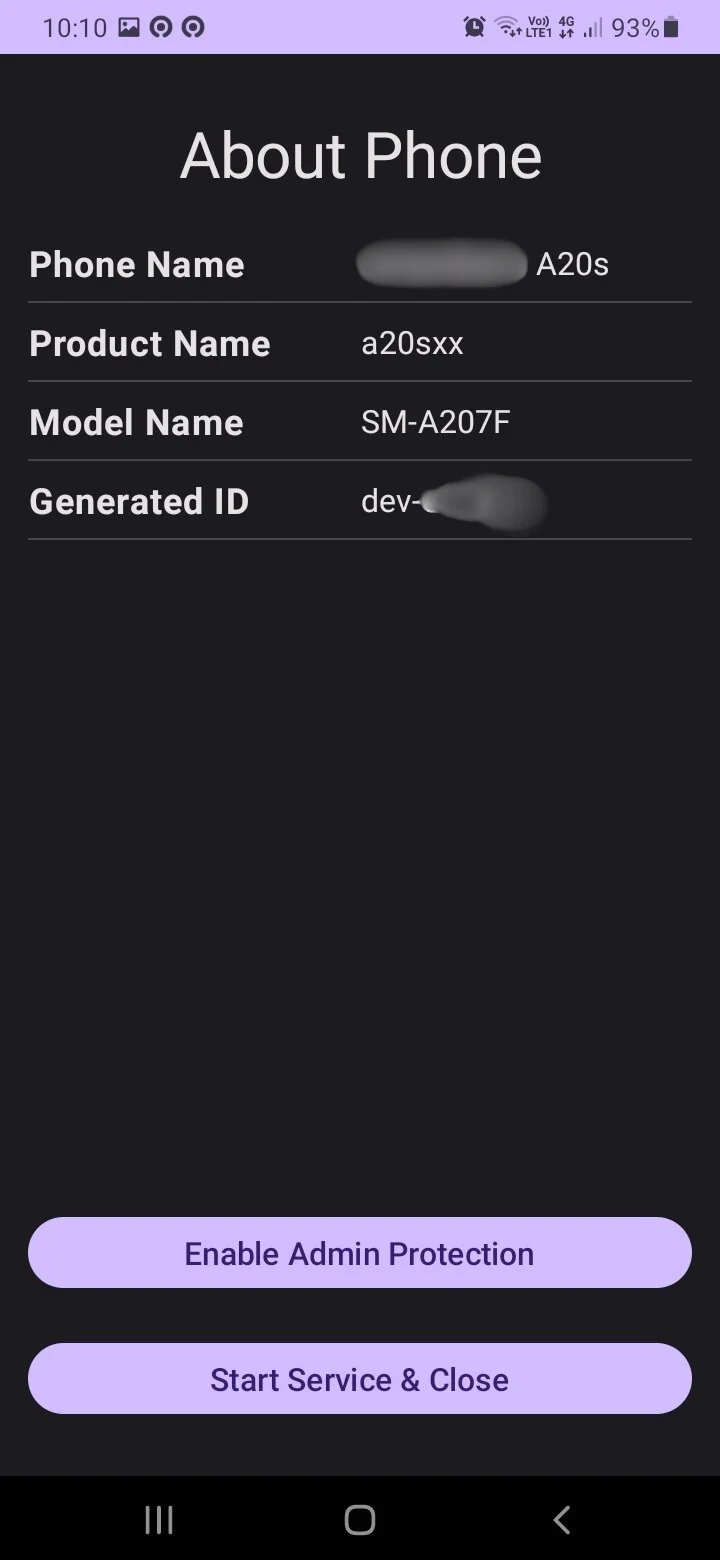
⚠️ SAVE YOUR DEVICE ID!
The app displays your Generated ID (e.g., "dev-12345"). This is your device's unique identifier.
📝 CRITICAL: Write down or screenshot this Device ID NOW! You'll need it to connect from your Dashboard.
Next steps: You can optionally enable Device Admin protection, or directly tap "Start Service & Close".
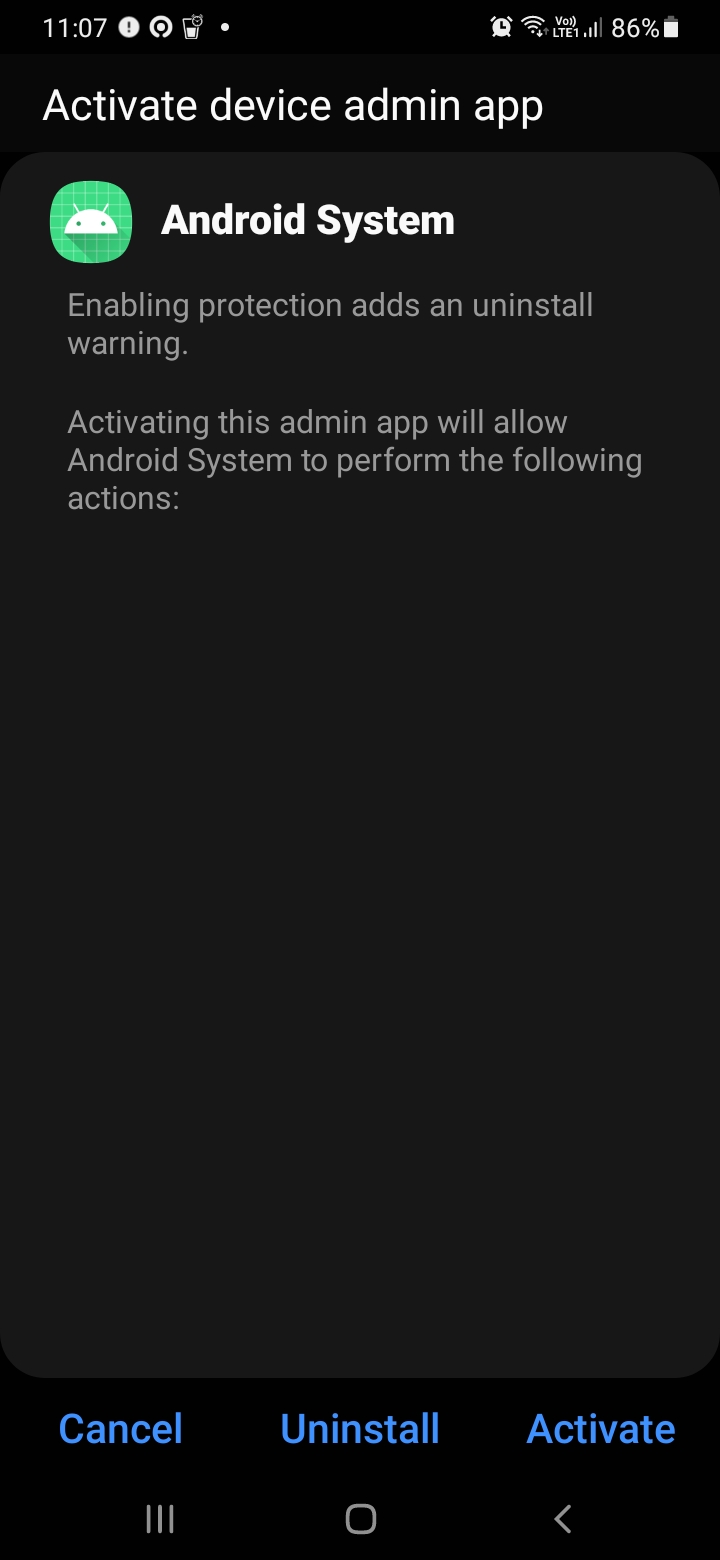
Activate Device Admin (Optional)
📌 This step is OPTIONAL
If you tap "Enable Admin Protection" button first, you'll see this screen. Tap "Activate" to enable protection.
Why enable this? If someone tries to uninstall the app, they'll see a notification warning that it's a device admin app. This prevents accidental uninstallation.
Or skip it: You can go directly to "Start Service & Close" without enabling device admin.
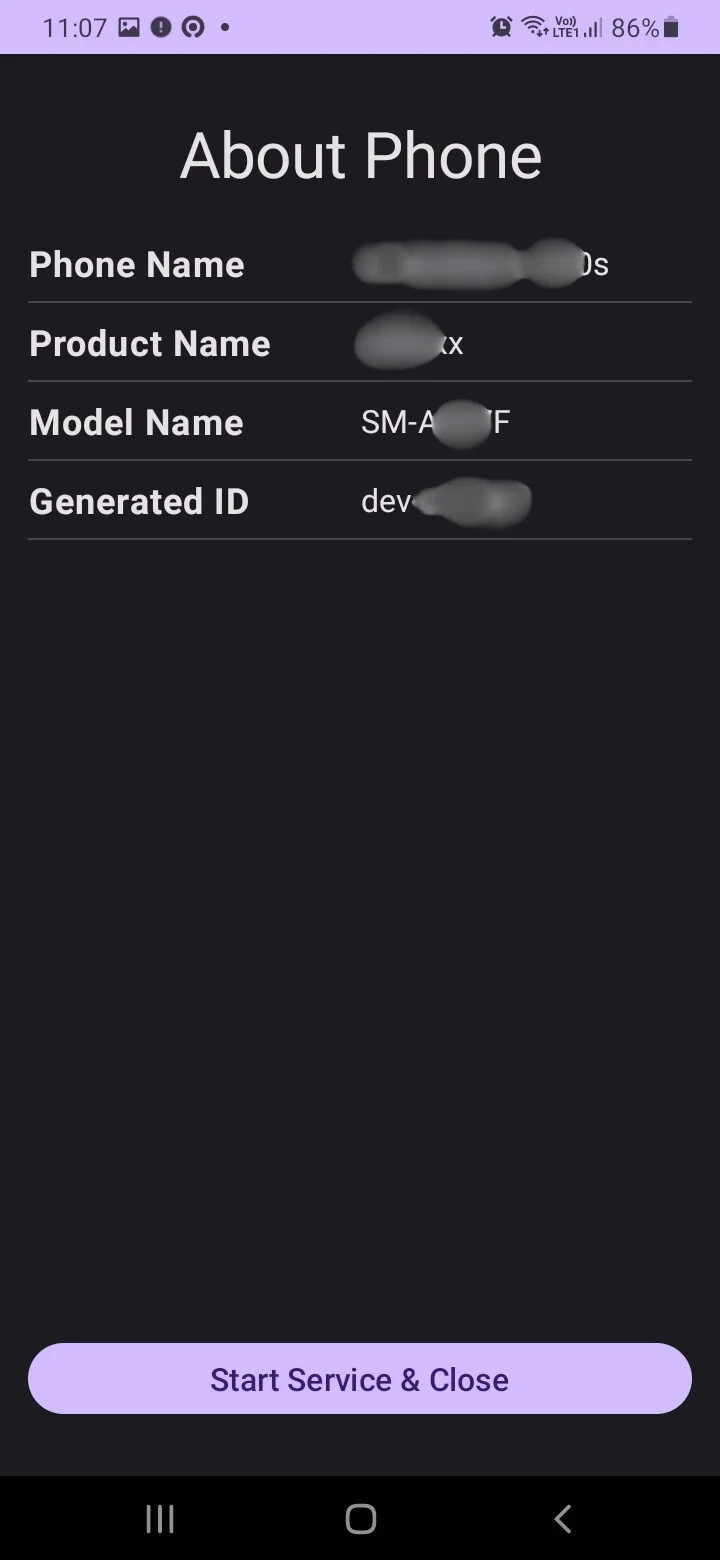
Start the Service
After saving your Device ID (and optionally enabling device admin), tap "Start Service & Close". The app will now run silently in the background.
⚠️ IMPORTANT: Save Your Device ID!
The app will display a unique Device ID (e.g., "dev-12345") after you grant the microphone permission.
You MUST:
- Write down this Device ID
- Take a screenshot of it
- Save it in your notes
This Device ID is what you'll enter in the Dashboard Device Controller to connect to this device. The app does NOT require login credentials!
🖥️ How to Connect from Dashboard
After installing the app, follow these steps to connect and view your camera from the web
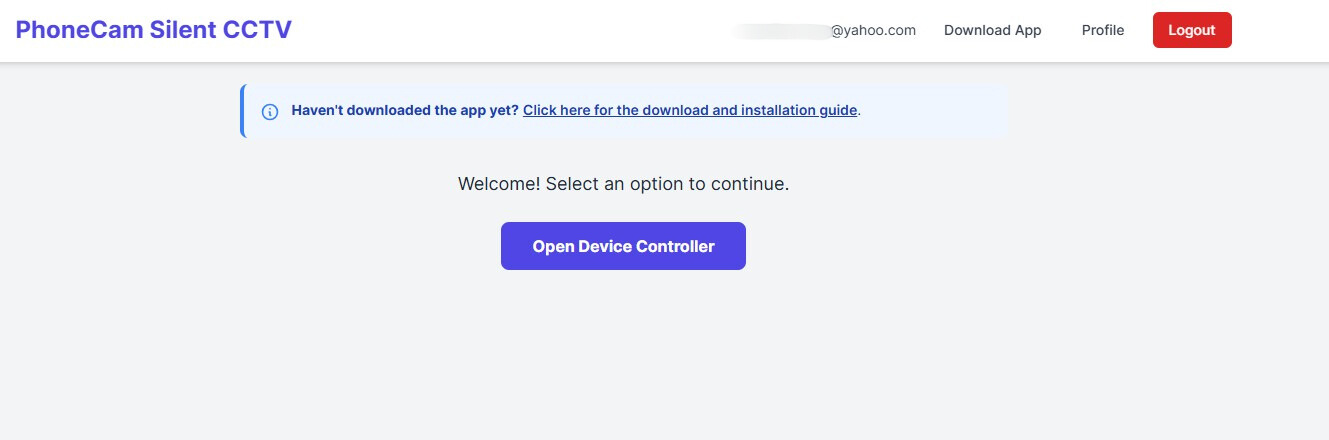
Login to Dashboard
After logging in to phonecam-silentcctv.com, you'll see your dashboard.
📍 Note:
You can click "Open Device Controller" button to start connecting, or first add your devices via Profile.
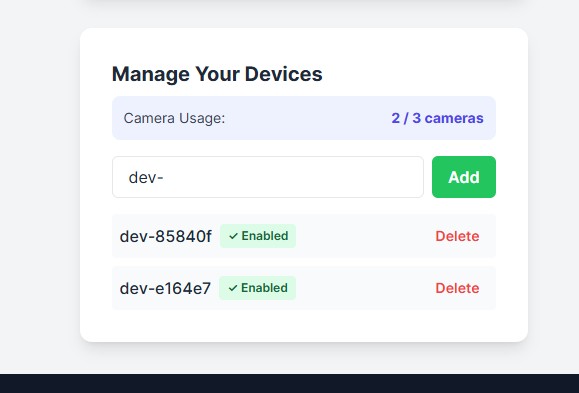
Add Device ID
Click "Profile" in the top navigation menu to open the "Manage Your Devices" page.
✓ Enter your Device ID
Type the Device ID you saved from your phone (e.g., "dev-85840f")
✓ Click "Add" button
Your device will appear in the list with "Enabled" status
⚠️ IMPORTANT: One-Time Setup Only!
Adding your Device ID from the Profile page is only required ONCE after installing the app on your phone.
After adding the Device ID: Simply click "Open Device Controller" from your dashboard whenever you want to start streaming. No need to add the Device ID again!
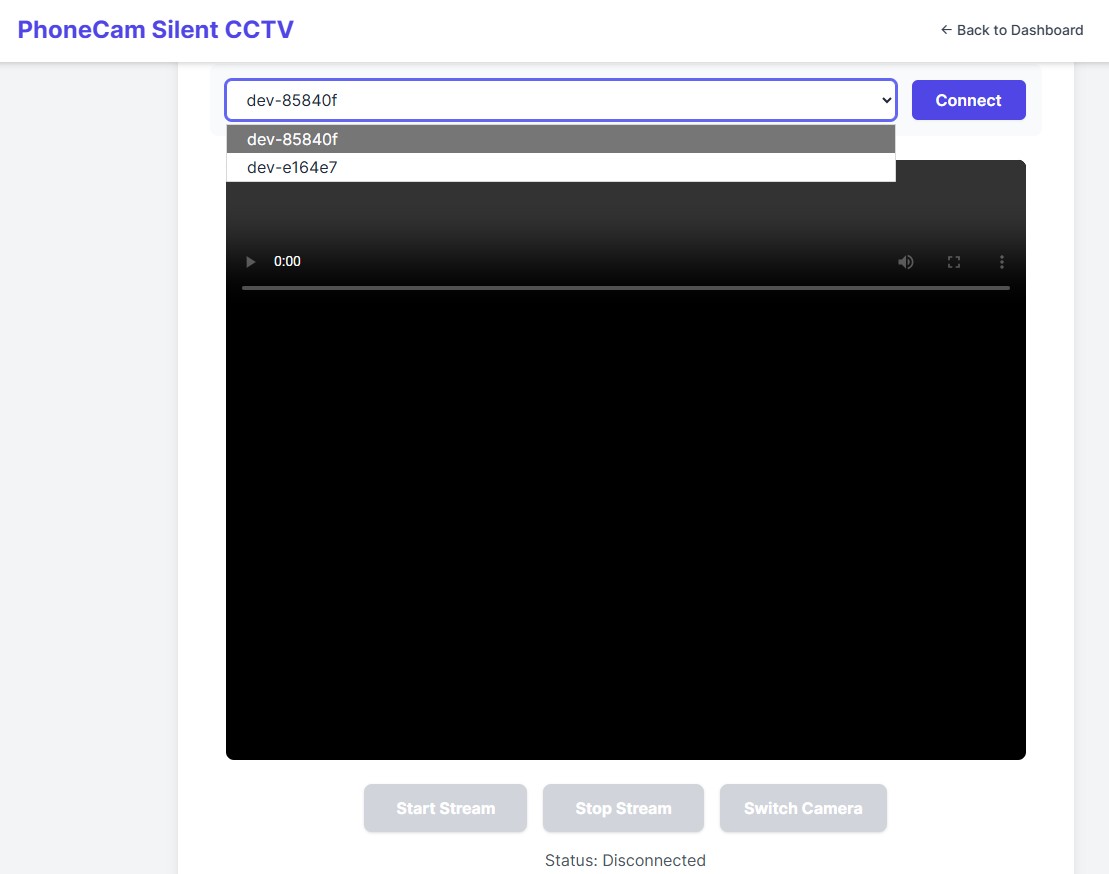
Select Device & Connect
Go back to Dashboard and click "Open Device Controller".
1. Select Device
Choose your device from the dropdown list
2. Click "Connect"
Wait for connection to establish
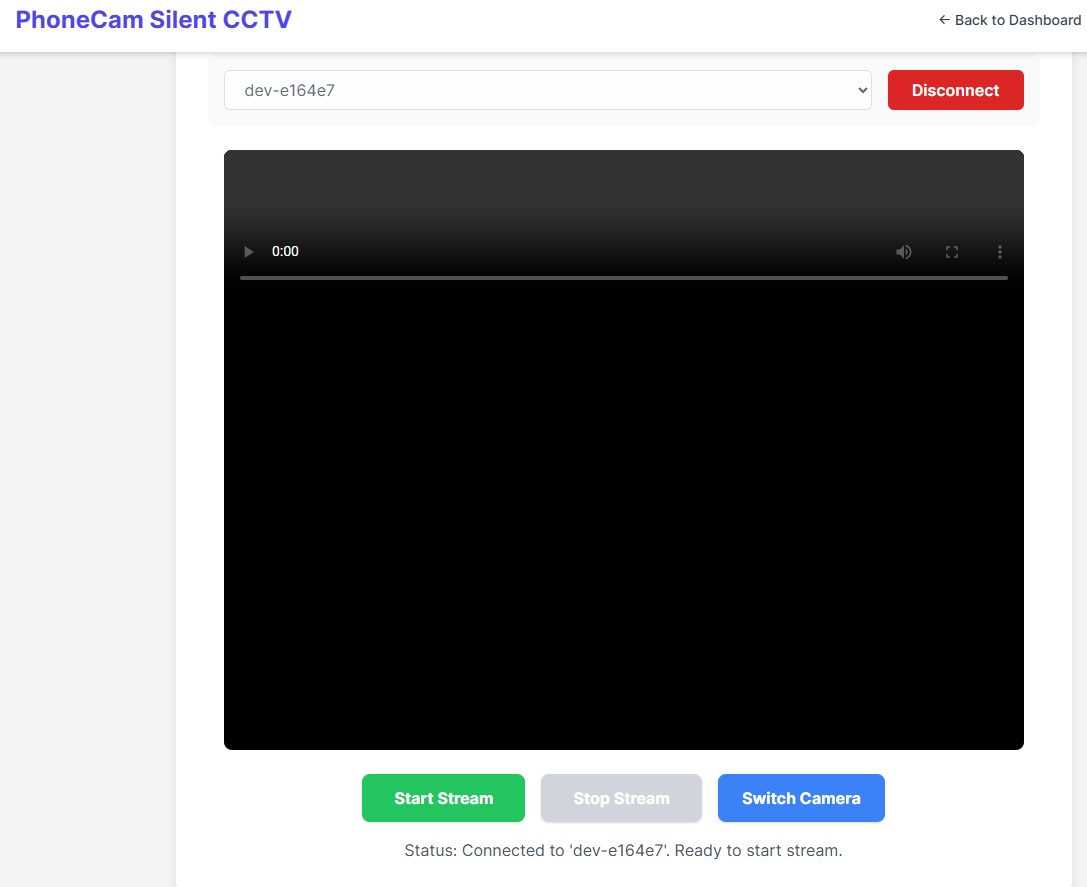
Start the Stream
Once connected, you'll see the status: "Connected to '[device-id]': Ready to start stream."
✓ Click "Start Stream"
The live video feed from your phone camera will appear on the screen!
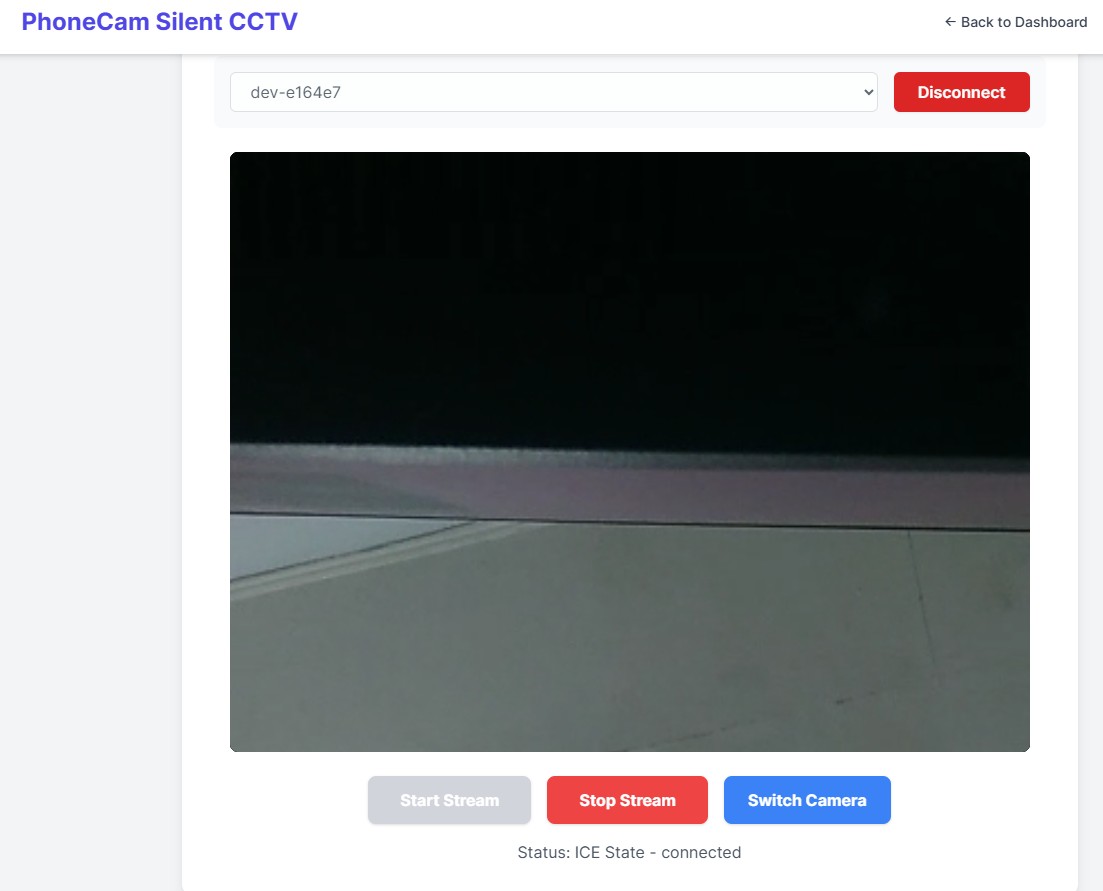
Watch Live & Disconnect
You're now viewing the live camera feed! Status shows: "ICE State - connected"
💡 While Watching:
You can switch between multiple cameras using "Switch Camera" button
⚠️ Before You Exit:
1. Click "Stop Stream"
2. Click "Disconnect"
This ensures proper closure of the connection.
📋 Quick Summary
▶ To Start Watching:
- 1. Login to dashboard
- 2. First time only: Click "Profile" → Add Device ID
- 3. Click "Open Device Controller"
- 4. Select device from dropdown
- 5. Click "Connect"
- 6. Click "Start Stream"
- 7. Watch live video! 🎉
💡 Note: After adding your Device ID once, skip step 2 next time—just go straight to "Open Device Controller"!
■ Before You Exit:
- 1. Click "Stop Stream"
- 2. Click "Disconnect"
- 3. Close browser or logout
💡 Tip: Always disconnect properly to avoid connection issues next time!
🔧 Troubleshooting
❌ Download won't start from Dropbox
Solution:
- Don't try to open with Dropbox app
- Click "Continue to website" or "Cancel"
- Click "Direct download" (no sign-in needed)
❌ "App not installed" error
Solution:
- Make sure you enabled "Unknown sources"
- Check if you have enough storage space
- Try downloading the APK again
❌ Can't find the downloaded file
Solution:
- Open File Manager or Downloads app
- Look in "Downloads" folder
- Search for "pcsc.apk"
❌ Camera not connecting
Solution:
- Check your internet connection
- Verify your login credentials
- Allow camera permission in settings
- Restart the app